 Scrole
Sign in
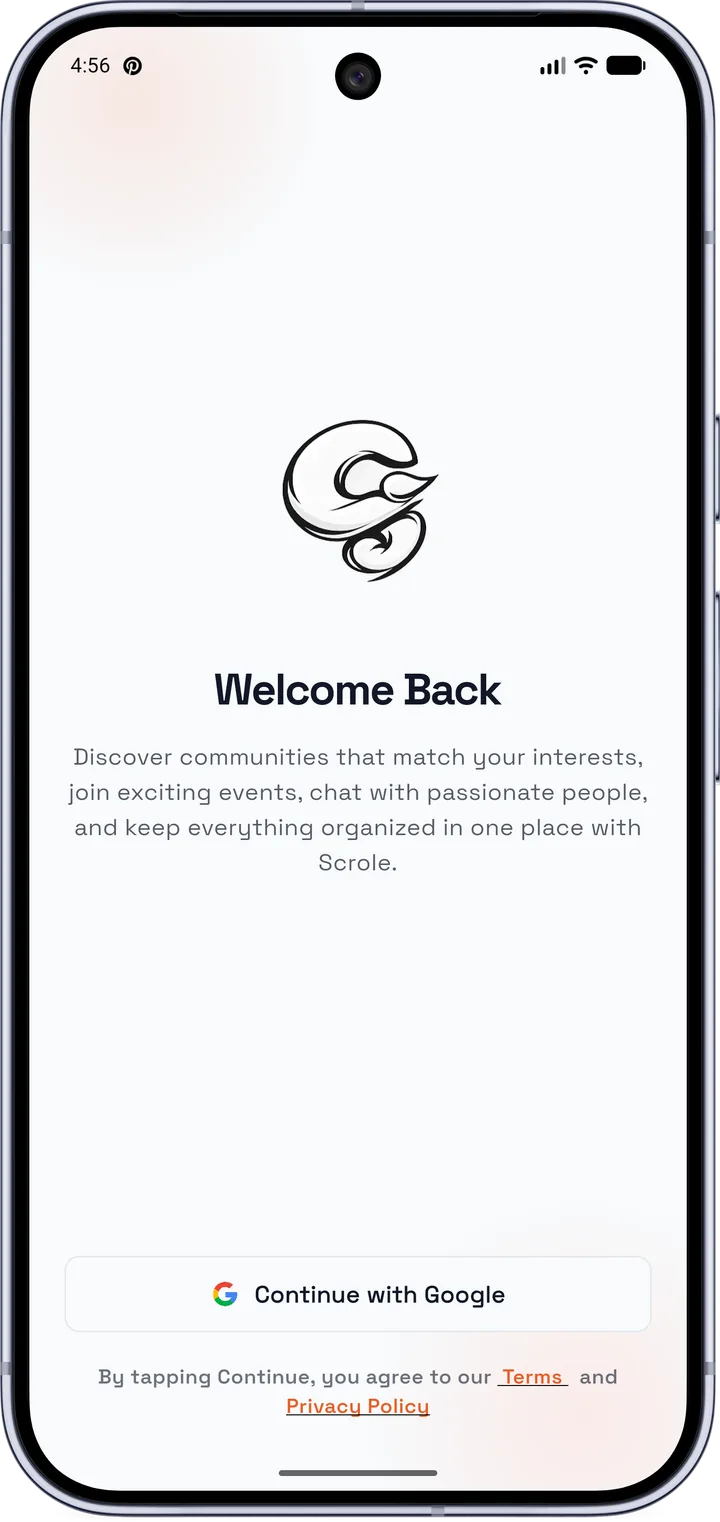
- Open Scrole.
- Tap “Continue with Google”.
- Pick your Google account and complete your profile.
Search for an answer, follow a step-by-step guide or contact the Scrole team.
The most useful actions, in three steps.
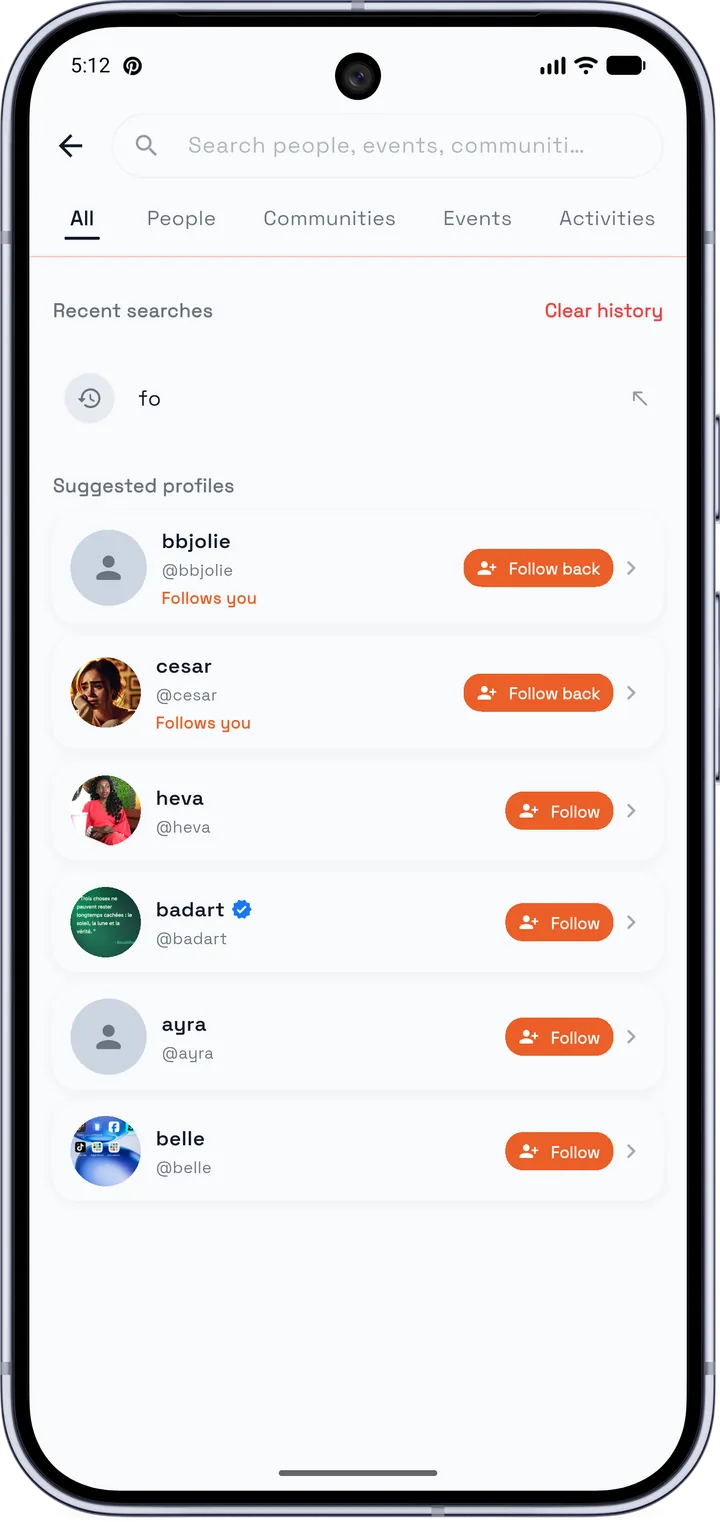
Type a word in the search or open a category.
Installing, account and first steps.
Scrole is an Android app for otaku and geek culture fans (anime, manga, cosplay, video games, K-pop, esports). It lets you find events, join communities and chat with other fans, in Cameroon, across Africa and beyond.
Yes, the app is free. Some events have paid tickets, priced by their organizers: the price is shown on the event page.
For now, Scrole is only available on Android. There is no iPhone version yet.
Scrole is in beta: it is installed with the APK file from the website.
Scrole is in beta and we are preparing its Play Store release. In the meantime, the APK file lets you try it right now.
Yes, as long as you download it from the official Scrole website or from our Aptoide page. Avoid copies sent by strangers.
Through Aptoide, updates are automatic. With the website’s APK file, download the latest version again and install it over the old one: your data is kept.
Open Scrole and tap “Continue with Google”, then pick your Google account. There is no Scrole password to remember. You can then complete your profile.
Yes: Scrole is for people aged 18 and over.
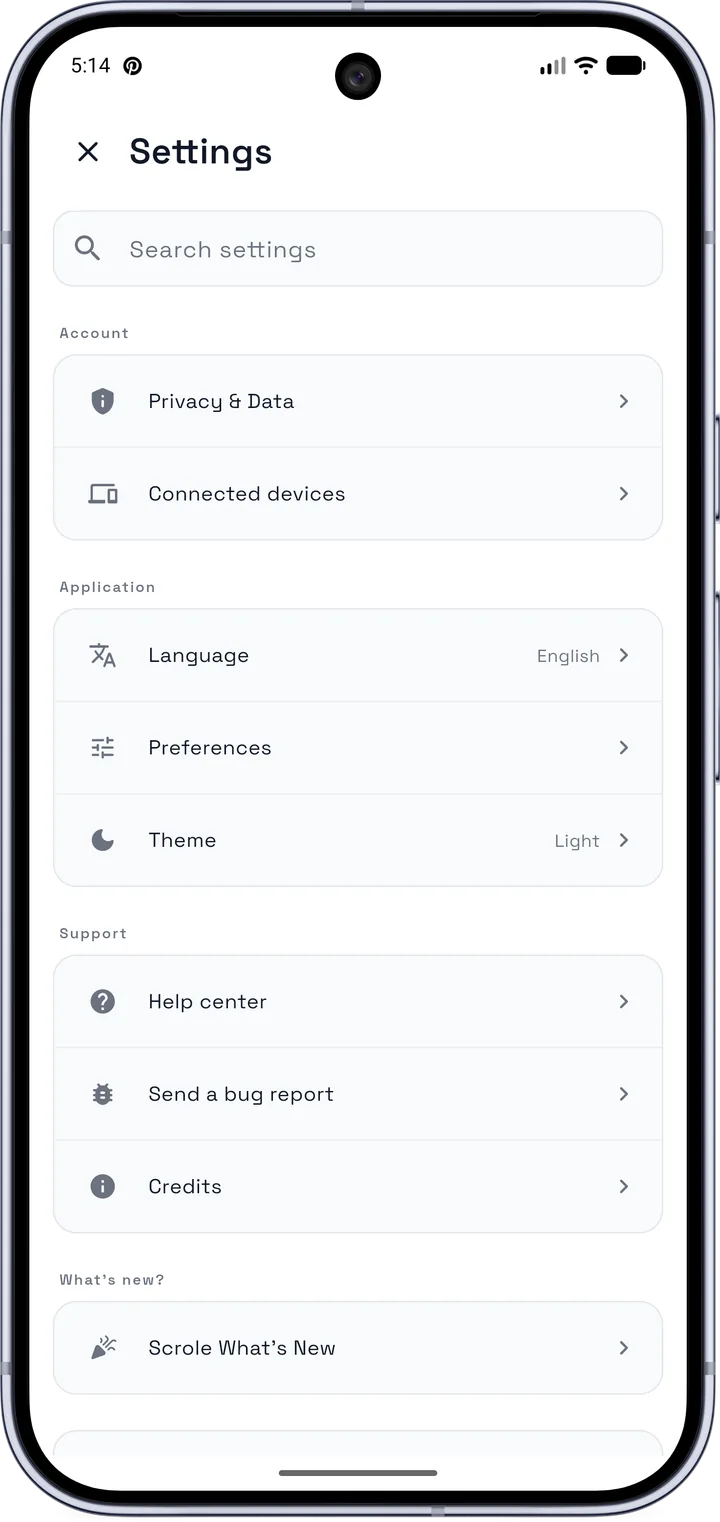
Open Settings, then choose “Language” or “Theme” (light or dark).
Long-press the Scrole icon, then choose “Uninstall”. You can also go to Settings › Apps › Scrole.
Find, create and follow an event.
The “For you” and “This week” suggestions and the monthly calendar (filters: upcoming, free, paid, online, in person) show what’s happening around you. You can also search for an event by name with the search bar.
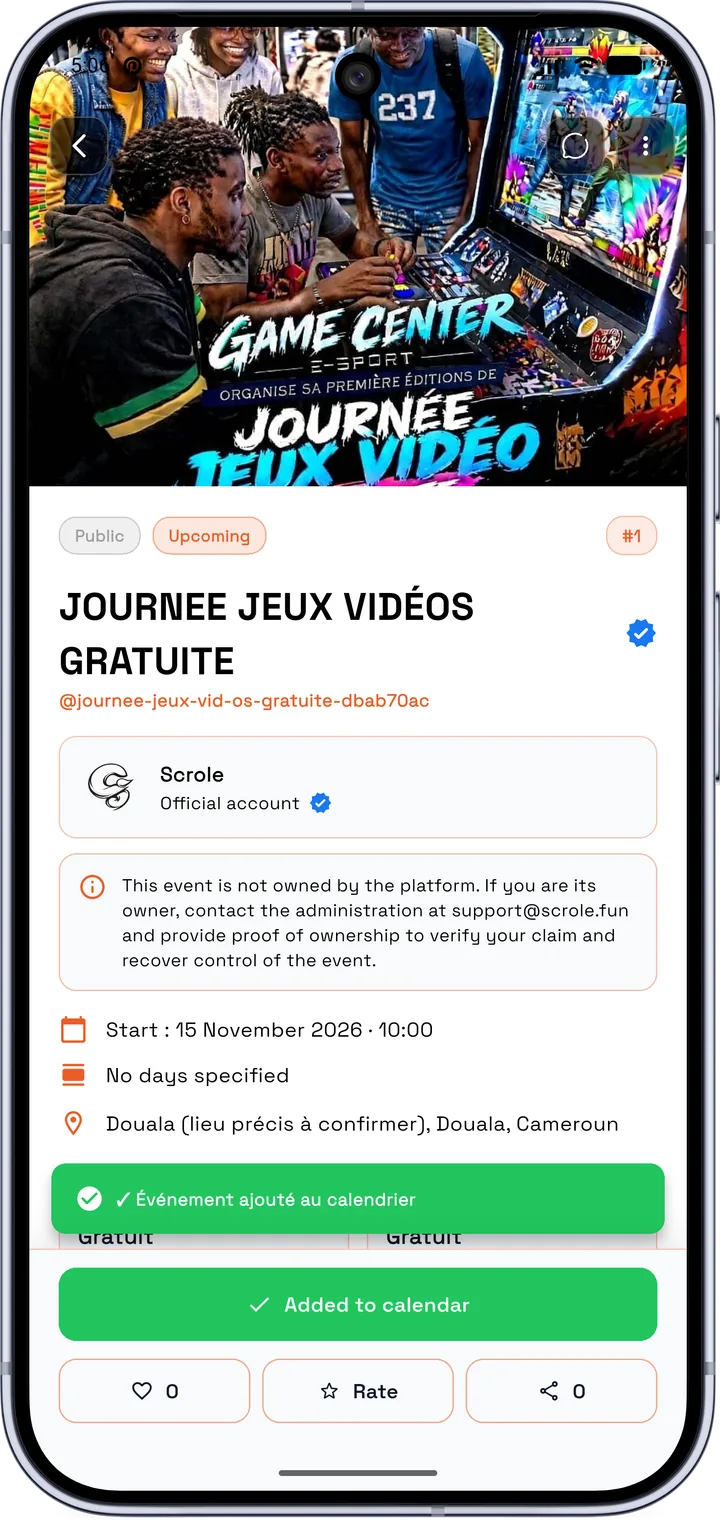
“Like” shows you enjoy the event. “Add to agenda” says you plan to go: the event appears in your agenda, with your QR code and your reminders.
Every event is reviewed by the Scrole team before it is published: allow 10 to 24 hours. You get a notification when it is approved. If it is declined, the exact reason is given in the notification. If nothing happens after that time, write to support@scrole.fun with the event’s name.
Some events are added by the official Scrole account. If you own it, write to support@scrole.fun with proof of ownership (official poster, organizer page…): after verification, you can take control of it.
Open the page, tap “Rate” and choose a score from 1 to 10. You can only rate once the event has started.
You can create one. It is reviewed by the team, then becomes available to other organizers.
If you had added it to your agenda, you get a notification when the organizer changes the date or deletes the event.
Open the event page, tap their profile and send them a message, depending on their privacy settings. For any question about price, place or time, they are the one to answer.
Plan your outing and get recognized on site.
On the event page, tap “Add to calendar”. A message confirms it’s done. You find the event in “My agenda”.
Open “My agenda”, then tap “Remove” under the event.
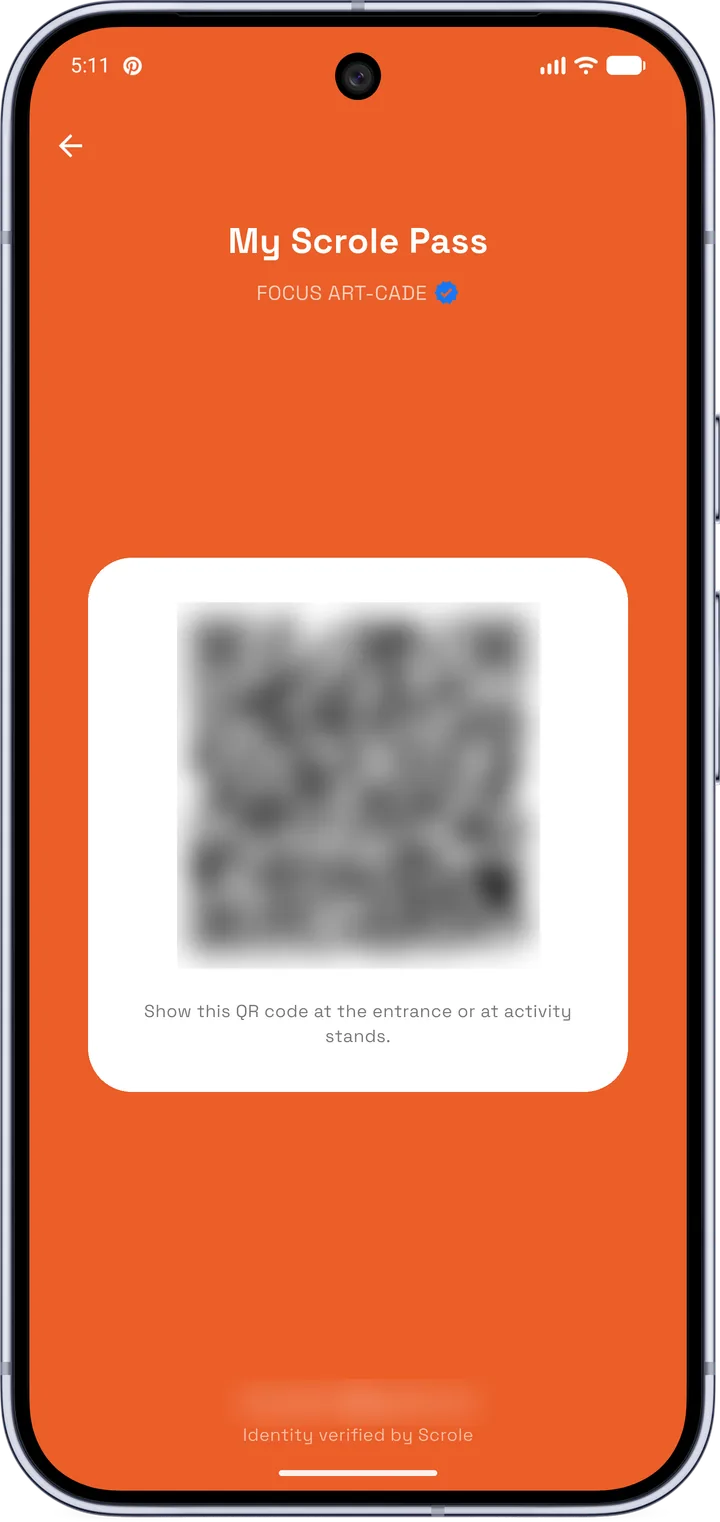
In “My agenda”, tap “QR code” under the event, or open your Scrole Pass from the event page. Show it at the entrance or at activity stands.
When an event is in your agenda, Scrole reminds you as it approaches with a notification. If you get nothing, check that Scrole notifications are allowed on your phone.
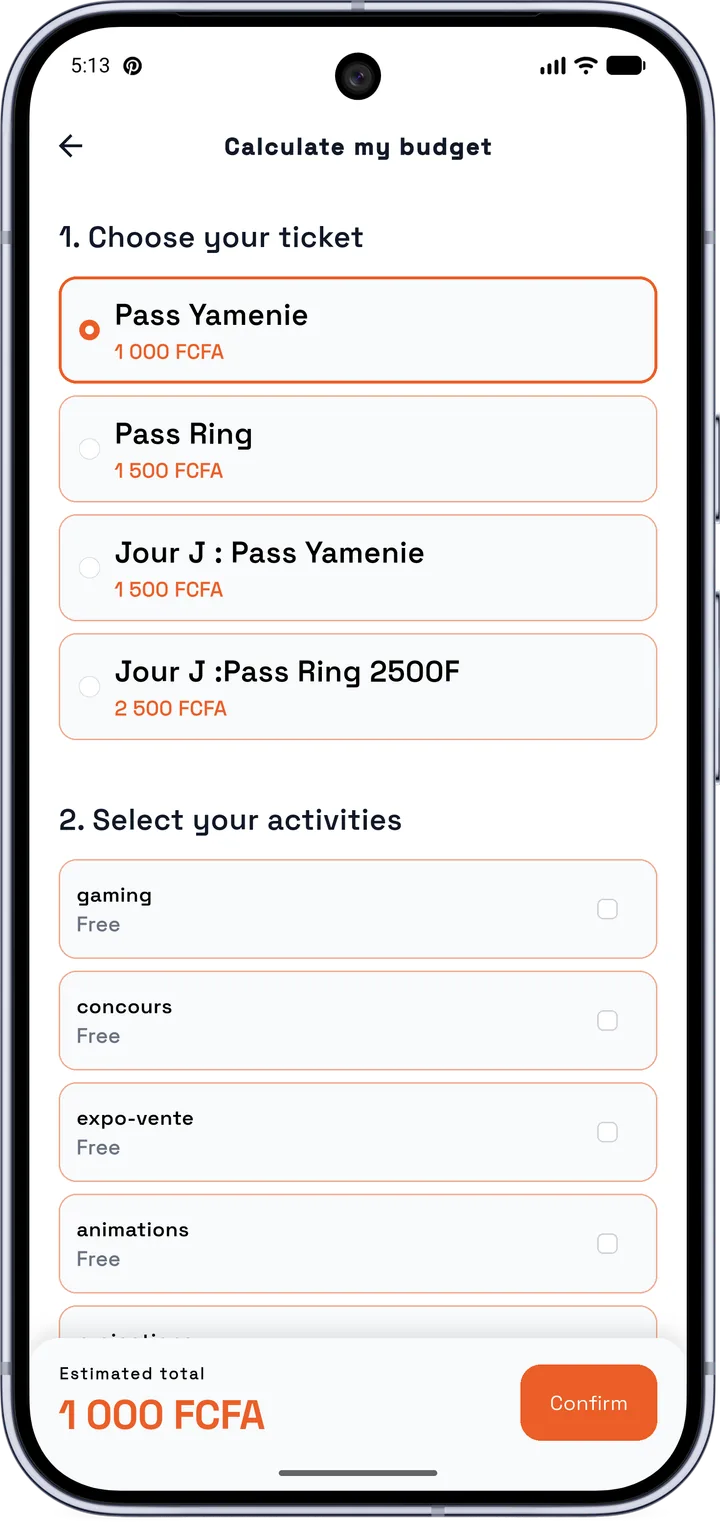
To organize what you will do at the event. You choose your activities in advance, so you know what to expect.
Join, create, post and chat.
Use the search (“Communities” tab) to find those you like: anime, manga, cosplay, gaming… Open the community and join it. If it’s private, your request must be accepted by its owners.
From “My communities”, tap “+”. Choose a name, a unique handle, a slogan, a description, a profile photo and a cover, then set the visibility (public or private) and your rules.
They are a community’s discussion spaces. The owners choose what is allowed in each room (images, videos, voice messages).
Tap the “+” button in the middle of the bottom bar, add your text, photo or video, then choose who can see it: everyone or a community. You can add hashtags and mention someone with @.
Some communities approve posts before they appear, or limit who can post. Check the community’s rules or write to its moderators.
A story lasts 24 hours, then disappears. Choose who can see it, your friends can like it and comment on it. You can also share a post in it if its author allows it.
Open the “Messages” tab or the person’s profile. You see whether your message is sent, delivered or read. A person can limit who writes to them: in that case, you won’t be able to contact them.
Tap the three dots on the post and choose to hide it. For problematic content, use “Report” instead.
Who sees what, and how to manage your profile.
In Settings › Privacy & Data, you choose your profile’s visibility, whether your online status shows, who can message you, whether your country, city and last connection are visible, and who sees your event plan.
With a private profile, people must ask to follow you and you accept or decline.
Follow the person: when you follow each other, you become friends. To go faster, scan their profile QR code.
On your profile, choose up to three roles, one of them main. They help others find you.
It marks profiles, events and communities certified by Scrole. A question about certification? Write to support@scrole.fun.
Open Settings › Connected devices.
It is handled according to our privacy policy. For any request about your data, write to support@scrole.fun.
Write to support@scrole.fun from the email address linked to your Google account and tell us you want to delete your account: we’ll reply with the next steps.
Block, report and stay protected.
Open their profile, tap the three dots and choose “Block”.
Tap the three dots on the content and choose “Report”, then give the reason and, if you want, details. The Scrole team reviews reports.
The Scrole team moderates the platform. In communities, moderators also make sure the rules are respected.
When something doesn’t work as expected.
You can also write to us at support@scrole.fun.
Check your internet connection, wait a few seconds, then pull the screen down to refresh. On a slow connection, videos can take longer to appear.
Depending on what you need, here is the right person.
| What you need | Who | How |
|---|---|---|
| A question about the app, a partnership, press | Scrole team | contact@scrole.fun |
| An account problem, an event to take over, privacy, a serious report | Support | support@scrole.fun |
| A quick answer or a conversation | +237 6 96 22 40 54 | |
| A bug in the app | In the app | Settings › Send a bug report |
| Content or a person causing a problem | In the app | Block, then Report (three dots) |
| A question about an event (price, place, time) | The organizer | Message from the event page |
| A rule in a community | The moderators | Write to them from the community |
Write to us: we read every message.